Best Parental Control Apps in 2026: Pros, Cons & What Parents Should Know

Introduction
Parenting in the digital age can feel overwhelming. Kids today are growing up with smartphones, tablets, gaming consoles and social media – tools that didn’t exist when many parents were young. Between TikTok trends, online games and constantly-changing apps, it’s hard to know where to start. Recent surveys (including 2025 data) show that many parents still don’t consistently use controls across all devices, often feeling overwhelmed by the options and setup[1]. With new online dangers emerging, however, more parents are realizing they need some guardrails to keep kids safe (even if those tools feel confusing at first). This guide helps explain why parental-control apps matter, what they do, and how to choose and use them effectively – all in plain language for non-technical parents.
Why Parental Control Apps Matter More Than Ever
Kids’ digital lives have grown extremely complex. They spend hours daily on screens – on school, games, social media, videos and chat apps. Research consistently shows more screen time can raise risks like poor sleep, unhealthy habits, cyberbullying and exposure to inappropriate content. For example, a 2025 study found that families who do use parental controls report significantly lower screen time for their children compared to families who don’t[2]. In other words, using these tools can really help enforce healthy limits.
Meanwhile, social media and messaging apps mean kids interact with strangers or peers 24/7. Trends like social challenges, peer pressure, cyberbullying, and even adult content are just a few taps away. Parental control apps offer one layer of protection – they can limit screen time, filter web content, manage apps and flag risky conversations. As online life becomes more central, these apps have become an important part of keeping children safe and balanced in an increasingly digital world (though no app can replace good communication and guidance at home).
What Parental Control Apps Actually Do
Parental control apps generally offer these core capabilities. (Note: not every app does all of these, but most cover several):
- Screen Time Limits: Set schedules or daily allowances for device use. For example, you can limit total hours per day or block the device at bedtime or homework time. Many apps let you create custom schedules (school, bedtime, free time) so kids can’t use apps outside allowed hours.
- App and Game Blocking: Control which apps and games your child can use. You can often block entire apps or approve new app downloads (either by category or individually). This helps prevent access to violent or addictive games, or to games your child isn’t ready for.
- Web Filtering: Block or allow access to websites by category (e.g. pornography, violence, gambling, etc.). Many apps include dynamic filters that analyze sites in real time. Most come with dozens of category options so parents can block broad classes of content without managing individual sites. (For instance, Qustodio supports 25+ web categories, letting you block or allow each one[3].)
- Location Tracking: See your child’s real-time location on a map and set geofenced zones with alerts. This can reassure parents about kids’ safety after school or when out with friends. (Some apps even include driving features: tracking routes, top speeds, or sending SOS alerts if the child is in danger.)
- Social Media and Message Monitoring: Scan text messages, emails, and social networks for signs of risky content (bullying, self-harm, drugs, etc.) and alert parents. For example, Bark’s AI scans a child’s chats on many platforms (WhatsApp, Instagram, TikTok, etc.) and sends a notification only if something concerning is detected[4]. Other tools might give parents a summary of what kids see or say online. (Note: due to privacy and technical limits, no app can literally “read” every message; usually they flag only the posts or chats that match chosen keywords or topics.)
Each app has its own mix of these features. Some are stronger at filtering websites and scheduling, while others excel at monitoring social media or logging calls. We’ll cover the most important ones in the next section.
Important Features Parents Should Look For
When choosing a parental control solution, here are key features and qualities to consider:
- Multi-Device and Multi-Platform Support: Make sure the app works on your family’s devices (Android, iPhone, Windows, Mac, etc.). For example, Qustodio and Net Nanny work on Windows and macOS as well as phones, while Apple Screen Time only works on iPhones/iPads.
- Ease of Use: Look for an intuitive app or website dashboard. Non-techy parents should prefer simple interfaces. Norton Family and Google Family Link, for instance, are known for being straightforward to set up and operate[5].
- Web Filtering Scope: Check how many content categories it can filter, and how it filters. Some apps have dozens of preset categories. Norton Family, for example, offers 45 content categories (like “adult,” “social media,” etc.) with strong filters[6].
- Screen Time Controls: See how granular the controls are – can you set different limits for weekdays vs weekends, specific apps, or specific times (school vs bedtime)? Norton Family allows half-hour granularity and includes a special “School Time” mode. Google Family Link and Apple Screen Time allow daily/app limits and downtime schedules.
- Alerting and Reporting: Good tools will alert you only when needed. Bark, for instance, sends instant alerts (push, text, email) if something problematic appears. Others provide weekly summary reports. Check that the alerts are clear and easy to understand.
- Safety & Privacy: Ensure the app is reputable and respects privacy. (Some experts note that parent-kid trust is crucial – kids should know monitoring is happening.) Avoid apps with sketchy data practices. Well-known brands (Bark, Norton, Qustodio, etc.) have vetted privacy policies.
- Support and Updates: Good support can help if you struggle with setup. Large companies like Norton offer 24/7 chat/phone support, whereas smaller apps may rely on email only. Also check how often the app is updated; 2025–26 saw big improvements (see the app-specific sections below).
- Age Appropriateness: Some apps have features aimed at certain age groups. For example, Bark is often recommended for families with teens because of its nuanced alert system, whereas Google Family Link and Apple Screen Time are geared toward younger kids.
In short, match an app’s strengths to your family’s needs: robust filtering if your kids mostly browse the web, or strong social monitoring if they spend many hours on social media.
Comparison of Major Parental Control Apps
Qustodio
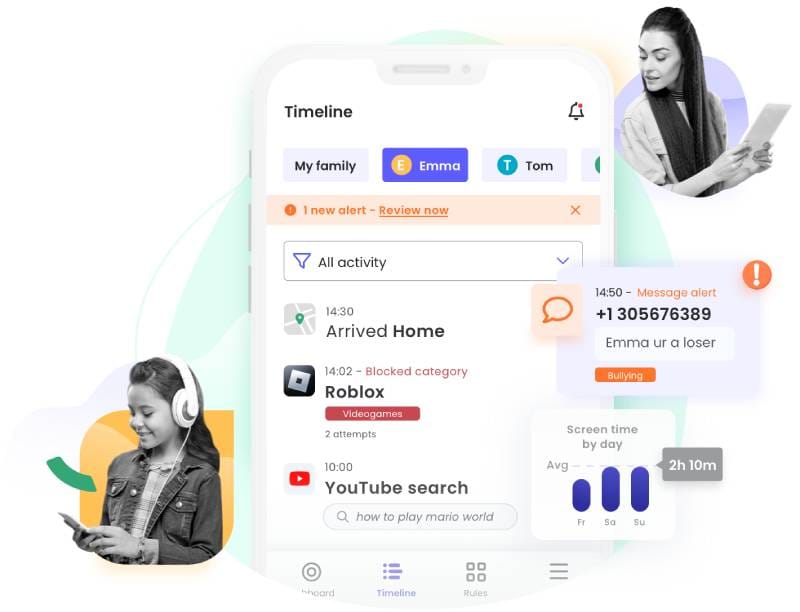
Overview: Qustodio is a powerful, cross-platform parental control suite (Android, iOS, Windows, Mac, Chromebook, etc.) known for its comprehensive filtering and scheduling tools. It offers a full range of controls – web, apps, time, location – plus new AI alerts and social monitoring. Tech reviewers praise its “superb filtering, scheduling, screen time, AI additions, location, design and reporting”[7].
Key Features: Qustodio’s strengths include real-time web filtering (100+ categories), app blocking, and screen time management. You can set daily time limits for the whole device or for each app, create custom schedules (bedtime, study mode, etc.), and even pause the internet instantly (a “Family Pause” feature). It also tracks location and geofences (albeit with a modest 200 m radius) and logs calls/SMS on Android.
Recent updates (including in 2025) expanded Social Monitoring – it scans and sends AI-powered alerts for concerning messages on WhatsApp, Instagram, Line, Snapchat, TikTok, and X (primarily on Android), flagging issues like bullying or self-harm. You can also allow or block entire app categories (games, social, education, etc.), so new apps are auto-managed by category. Built-in AI alerts monitor risky searches or chats across supported areas, notifying you of potential concerns.[8].
Pros:
Very strong web filtering (25,000 apps automatically categorized). A TechRadar review notes Qustodio can “easily filter out inappropriate apps, websites, and games” and performs extremely well at blocking unwanted content[3].
Flexible screen-time controls: Daily limits, custom schedules, and the new “Family Pause” make it easy to enforce breaks.
Detailed reporting: Real-time timeline, daily/weekly activity reports on web/app use, and location history.
Cross-platform support: Works on nearly every device. A single subscription covers all kids and devices (no per-child license).
Intuitive interface: The parent app has helpful tips and clear dashboards, making setup straightforward. Indeed, reviewers say it’s “typically easy to get started”[9].
Cons:
Social media monitoring is stronger on Android than iOS: It scans and alerts on concerning messages in WhatsApp, Instagram, Line, Snapchat, TikTok, and X (on Android), but iOS support remains more limited due to Apple restrictions, with alerts primarily for WhatsApp and Instagram chats.
Location radius is small: The geofence covers only a few hundred meters.
No live screen watching: It won’t show everything your child is doing at this moment – only filtered/flagged content is reported (similar to Bark’s approach[10]).
Difficulty of Setup: Easy. Qustodio’s account setup is straightforward: install on devices, grant permissions, then configure rules in the parent app. (TechRadar says it’s “typically easy to get started”[11].)
Best for: Families wanting a comprehensive, all-in-one solution. Qustodio is ideal if you need strong web/app filters and versatile time rules across many devices. It’s well-suited for younger kids (focused on blocking content and enforcing routines) or families with mixed devices who want one tool to cover everything.
Bark
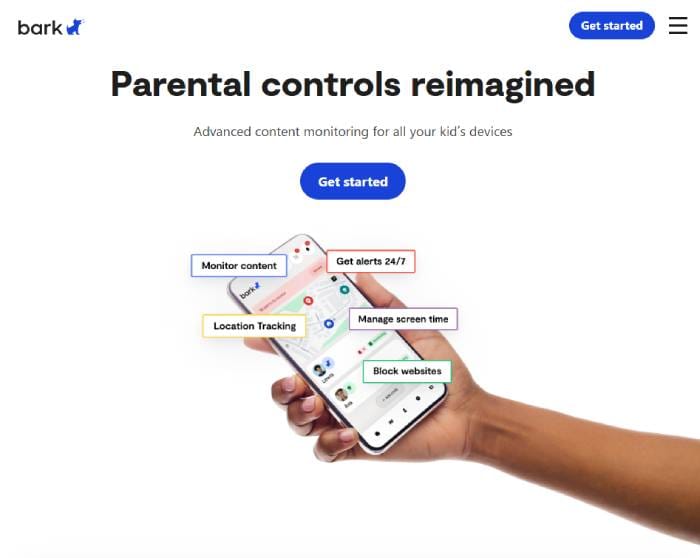
Overview: Bark focuses on monitoring content and conversations rather than strict blocking. It uses advanced AI to scan texts, emails, and social media (30+ platforms) for signs of cyberbullying, self-harm, sexual content, violence, and more. When it detects a “potential event,” Bark sends the parent a discreet alert via app, text or email – you then decide how to handle it. (Think of it as a “smoke alarm” rather than a surveillance camera.)
Bark works on both Android and iOS, though its monitoring is stronger on Android. On Android phones it covers dozens of apps (Facebook, Instagram, Snapchat, X/Twitter, TikTok, WhatsApp, Discord, even ChatGPT and game chats). On iPhone, iMessage and certain apps are monitored, but some social apps (TikTok, Snapchat, Discord) can’t be fully tracked due to Apple’s restrictions[12]. In addition to content scanning, Bark also offers app and web blocking, screen time scheduling, and family locator features.
Key Features: Bark’s standout feature is content scanning: it checks social media posts, direct messages, and email against your chosen list of concerning topics (drugs, bullying, self-harm, etc.). It supports 30+ platforms – far more than most competitors[4] – and it learns new slang and trends via machine learning. In practice, parents get alerts when something is amiss, but Bark does not give you a full log of every chat (so teens keep some privacy).
For time management, Bark lets you block websites and set device bedtimes or schedules in the native Bark app. It can pause the internet or device use with one tap (like Qustodio’s Family Pause). It also includes a family location map and geofencing (you get alerted when kids enter or leave set areas, or overspeeding in cars). Importantly, Bark’s own “Bark Phone” and “Bark Watch” devices exist too, which come pre-loaded with Bark Premium and add extra control (like contact lists on the watch), but those are optional hardware purchases.
Pros:
Best-in-class content monitoring: It catches more social interactions than any other app. Bark can scan emails and private messages on Instagram, WhatsApp, Snapchat, TikTok, and many more – something rivals simply don’t match. Many reviewers praise Bark’s “impressive alerting” and its ability to pick up on slang or context a parent might miss[13]
Unlimited devices: One Bark subscription covers unlimited kids and gadgets. That’s great for larger families.
Parental alerts & reports: When an issue is flagged, Bark tells you exactly which message or post triggered it. Alerts are clear and timely, and the dashboard shows recent activity and weekly summaries.
Internet pause: Bark’s “Internet Pause” lets parents instantly lock their child’s device or Wi-Fi – handy for ending screen time on demand.
Uninstall protection: The app has anti-tampering features, so kids can’t easily turn it off without notifying parents.
Cons:
Limited iOS monitoring: Due to Apple’s privacy restrictions, Bark’s monitoring on iPhone is significantly constrained—it works best over Wi-Fi (requiring a desktop app or Bark Home device), focuses on texts/photos/videos in supported areas, but cannot fully scan or alert on many key apps like TikTok, Snapchat, Discord, Instagram DMs, or iMessage content in real time. Cellular data use creates blind spots, so if your child has an iPhone and uses those apps heavily, Bark may miss substantial activity.
No call/SMS logs: Bark’s main app doesn’t view phone call or text logs – it focuses on social and app use. (Bark Watch + Bark Phone devices can provide some call/SMS control, but the standard Bark app does not.)
Not full browsing history: Bark blocks websites by category, but it doesn’t give a complete list of every site visited. You only see sites flagged for content concerns.
Setup on iOS can be tricky: Parents report that installing Bark on iPhones requires extra steps (like logging into kids’ Apple accounts) and can be confusing.
Difficulty of Setup: Medium. Bark’s dashboard is user-friendly, but the iPhone setup steps can trip up new users. Android setup is easier. (Reviews note Android is Bark’s sweet spot; on iOS it requires more configuration.)
Best for: Parents who prioritize digital conversation safety over hard shutdowns. Bark is ideal for families with older tweens/teens on social media, who want AI help spotting problems. It’s a “trust-based” tool (it will alert you only when something meets your specified criteria). If your main concern is what kids are seeing and saying online – rather than locking them out entirely – Bark is a top choice.
Norton Family
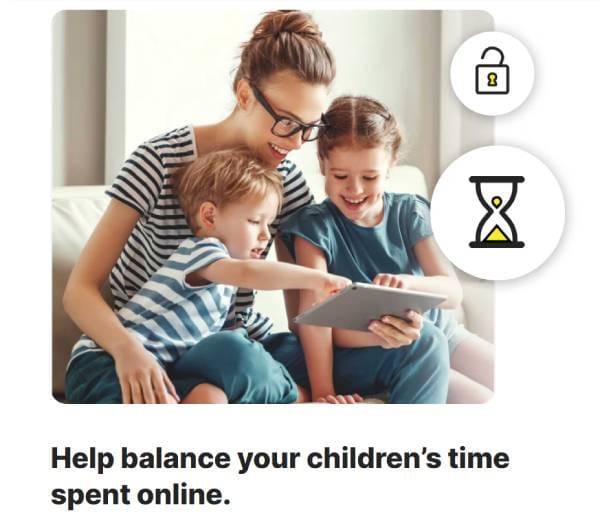
Overview: Norton Family (part of Norton 360 antivirus) is a straightforward, feature-rich parental control suite. It’s less flashy than some competitors but very solid and great value (often bundled in Norton security plans). Norton stands out for its web filtering and easy scheduling tools. Tech reviews call it a “competent, good-value product” that’s very easy to use.
Key Features: Norton Family offers web and search filtering over 45 categories (far more than most rivals). Parents can block content by category or site, or choose “warn first” mode so kids see a blocked notice. It even shows the child why a site was blocked, and allows exceptions. Norton enforces Safe Search on Google/Bing (Android and iOS, though on iOS you must use Norton’s own Safe Browser). Parents get detailed web history logs and can review searches or YouTube history[14].
For app controls, Norton simply shows all installed apps and lets parents block any. It doesn’t set per-app time limits (that’s a missing feature), but it tracks usage and highlights new apps. Screen time scheduling is flexible: you can set daily limits (in 30-minute increments), curfew hours, or even a special “School Time” mode (which locks out all but educational sites/apps during school hours). Kids can request extra time through the app (Norton will prompt parents to approve)[15].
Location tracking is included, with real-time map and geofences. Notably, Norton’s geofence radius is huge (up to ~3.2 miles, far bigger than most apps). Parents can also see location history and get alerts when kids enter/leave set zones. Norton has a “Lock Now” feature to instantly freeze a device and requires parental credentials to unlock.
Pros:
Strong web filtering: Norton’s content filtering covers around 41 categories (with effective blocking, warnings, and customization), along with enforced Safe Search, making it one of the stronger options for restricting adult or harmful web content.
Easy setup and use: According to reviewers, Norton Family is “very easy to set up” and navigate. Its controls are straightforward, and parents report it never feels overwhelming.
Good support: Being a big company, Norton offers 24/7 phone and chat support, plus forums and guides.
Value: If you already use Norton 360 Deluxe/Ultimate, Norton Family is included. It’s cheaper than many standalone parental apps.
Cons:
No social media or SMS monitoring: Norton does not read texts or social posts. It provides no alerts for chat content or cyberbullying. (If you need that, Bark or FamilyTime would be better.)[16]
No Mac or Linux support: Child apps exist for Windows, Android, iOS, but not Mac.
Limited app time control: You can block apps, but you cannot set individual app time limits. - Safe search on iOS only via Norton browser: The system-wide safe search only works if the child uses Norton’s built-in browser on iPhone/iPad.
Difficulty of Setup: Easy. Norton Family’s installer and welcome wizard guide you step-by-step (create a Norton account, install child apps, grant permissions). Most parents find it simple. (In fact, TechRadar notes “Norton Family is very easy to use”.)
Best for: Parents who want strong web content filters and solid scheduling without fuss. Norton Family is great for younger children or tweens who mostly use browsers and school devices. It’s especially good if you want value – getting robust parental controls alongside antivirus protection in one bundle.
Google Family Link
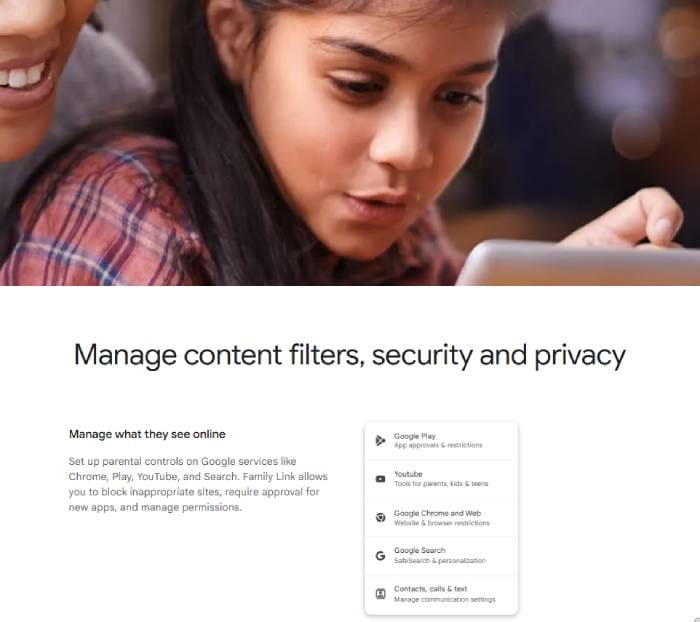
Overview: Google Family Link is a free parental controls app from Google, mainly for Android devices (though there is an iOS parent app). It’s designed for younger kids. Family Link helps parents manage their child’s Google account and device use. A major update in early 2025 gave it a fresh design and new tools (like “School Time” on phones and contact approval), making it more competitive.
Key Features: Family Link offers the basics: screen time limits, Downtime (device lock), app permissions and web filters. Parents can set daily screen time caps or a schedule. Downtime lets you block the device completely during homework or bedtime. The updated interface (2025) has a dedicated Screen Time tab to make these controls easy to find.
App management means kids must ask permission to download new apps (parents approve or block). You can also block specific apps after installation. Family Link enforces Google SafeSearch and content restrictions on Google Play – it blocks mature apps based on age ratings. The new “School Time” feature lets parents lock devices during school hours (even on Android tablets). Parents can also approve which contacts their child can call or text on Android phone (so kids only reach pre-approved friends).
It can also location-track an Android device (view on a map) if the child’s phone is on. And it shows app activity and allows you to remotely lock the device.
Pros:
Free and built-in: No subscription needed, and it’s integrated with the Google ecosystem.
Simple controls: The app is straightforward with Google’s clean design. Good for tech newbies.
Family account features: Because it’s tied to Google accounts, it automatically enforces age-appropriate settings (e.g. content filters) when setting up kids’ accounts on any Google service.
Cons:
Android-only child support: Kids must have a Google/Android device. iPhone kids can’t be managed (parents can view location from Android, but screen time controls only work on Android).
Limited features: No social media scanning, no advanced web categories (beyond SafeSearch). It’s more basic – good for small kids, not sophisticated monitoring.
No SMS/calls monitoring: Family Link cannot see your child’s texts or call logs.
Difficulty of Setup: Easy. Family Link walks you through linking your Google account with your child’s. It may require installing a separate app on the child’s device. Overall, it’s designed to be as user-friendly as possible.
Best for: Parents of young children or beginners. If all you need are fundamental controls (like screen time and app approvals) and your family uses Android devices, Family Link is a natural choice – especially because it costs nothing. It’s essentially the default Google solution for parents.
Apple Screen Time
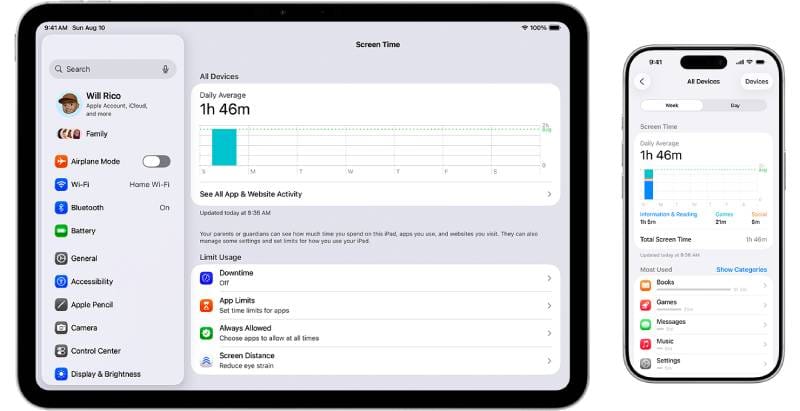
Overview: Apple’s Screen Time is built into iOS (and iPadOS/macOS). It lets parents set restrictions on iPhones, iPads, and Macs via Family Sharing. In iOS 25/26, Apple expanded Screen Time with new safety features (age-ratings, communication controls, etc.). Like Family Link, Screen Time is free and aimed at keeping kids within healthy usage limits on Apple devices.
Key Features: Parents can set App Limits by category (games, social, productivity, etc.) or for individual apps, and enforce a daily quota or downtime schedule. There’s also Downtime, which locks the device except for calls and approved apps at scheduled times (e.g. bedtime). You can always allow certain essential apps (like Messages) even during downtime.
For content, Screen Time enforces App Store Age Ratings (with options up to 12+, 17+, etc.) and has Content & Privacy Restrictions for web filtering (Limit Adult Websites, or only allow specific sites), purchases, and privacy (e.g. disabling location change, restricting Siri web search). New updates in 2025/26 added more: Communication Limits (kids must get parental OK before contacting new phone numbers or apps), and more granular age ratings (13+, 16+, 18+) across devices. Also, Apple now requires teens (13-17) to have default web/content filters on, similar to younger kids. Screen Time also includes “Ask to Buy” for app purchases, letting parents approve or deny purchases.
Pros:
Built-in and free: No extra app needed; it’s integrated into iOS/macOS.
Comprehensive iOS control: Very effective at limiting App Store apps by age, blocking mature content (even hiding mature apps entirely from the App Store).
Communication Safety: Apple’s “Communication Limits” can prevent kids from texting or calling strangers (parents must approve new contacts).
Easy for Apple families: If everyone uses Apple devices, it’s seamless. Screen Time settings are managed through the parent’s iPhone.
Cons:
iOS-only: It works only on Apple devices. If your child also uses Android or a computer, Screen Time does nothing there.
Can be bypassed: Savvy teens often find tricks (like using another device or resetting the phone clock) to extend usage.
Focus on prevention over alerts: Screen Time doesn’t monitor what kids see; it only blocks/delays. You won’t get alerts about content, only logs of usage.
Difficulty of Setup: Easy. Screen Time is very straightforward. Parents just create child Apple IDs (via Family Sharing) and enable Screen Time. The menus are user-friendly. Setup mostly involves deciding age limits and app allowances – a quick process.
Best for: Families fully in Apple’s ecosystem. If your kids have iPhones/iPads, Screen Time provides solid, reliable controls with no extra cost. It’s especially great for younger children (elementary/middle school), when you mostly need to restrict certain apps and set firm schedules.
Net Nanny
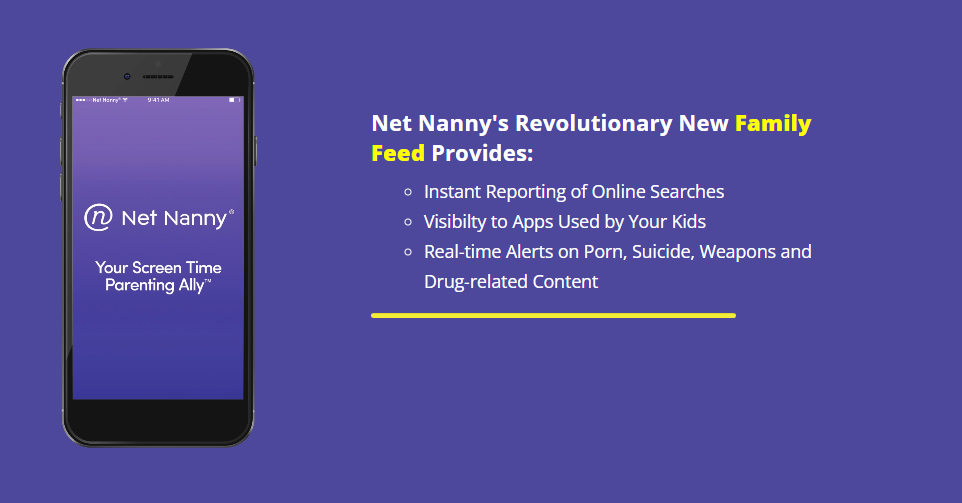
Overview: Net Nanny is a long-standing name in parental controls, particularly known for its dynamic web filtering. It works on Windows, macOS, Android and iOS (no Linux). Net Nanny’s core is a powerful internet filter that scans web pages in real time, rather than just matching categories. It also offers screen time limits, app blocking, and location tracking.
Key Features: The standout feature is Real-Time Internet Filtering: Net Nanny inspects pages as they load. It can catch explicit content or inappropriate keywords even on newly created sites that aren’t in its database. Parents can block entire categories (pornography, violence, etc.) or choose to "alert" instead of block. According to reviews, Net Nanny’s filter is “incredibly effective at catching problematic content”.
Net Nanny also provides Screen Time Management: set daily time allowances or schedules (internet on/off windows). It fully blocks or allows apps on the child’s device – you can even block the entire internet or specific apps in one tap. A handy feature is its Family Feed, which shows a real-time stream of your child’s online activity (apps used, sites visited) right to the parent dashboard.
For location, Net Nanny has a GPS family locator map and can show visit history (helpful to see where kids have been). It also monitors YouTube by reporting on searches and videos watched. In terms of social media, Net Nanny can notify if children encounter explicit content on popular platforms (TikTok, Instagram, Tumblr, etc.), but it does not read private messages[17].
Pros:
Exceptional web filtering: Its dynamic, page-scanning filter catches a lot of content that static filters might miss.
Intuitive interface: Parents find the dashboard clean and easy to use. Customizing filters and schedules is straightforward.
Broad device support: Works on desktops and phones, so it’s good for families with multiple device types.
Real-time activity feed: The Family Feed is a unique feature that shows kids’ online actions as they happen, which some parents find reassuring.
Cons:
Limited social insight: Net Nanny only monitors public content. You won’t see your child’s private chats or messages on social media. (Reviewers note it "doesn’t show direct messages or private posts", only filters publicly viewed content).
No call/SMS monitoring: It doesn’t track texts or call logs at all.
Possible bypass with VPNs: Tech-savvy kids can sometimes use VPNs or alternate browsers to evade the filter. (This is true of most filters, but has been noted as a weak spot for Net Nanny).
Subscription cost: Net Nanny is subscription-based. (They offer plans for multiple devices, but it can be pricier than some single-device competitors.)
Difficulty of Setup: Medium. Installation is fairly straightforward: install on each device and link them to your parent account. Some users note it requires approving permissions (like Accessibility on Android) but nothing too unusual. The interface is more visual and less text-heavy than some, which many parents like.
Best for: Families primarily concerned with web content filtering and basic limits. Net Nanny is a good choice if you want bulletproof internet filtering across devices, and you value seeing a live activity feed. It suits parents who want strong content controls but can accept that private chats won’t be monitored.
FamilyTime
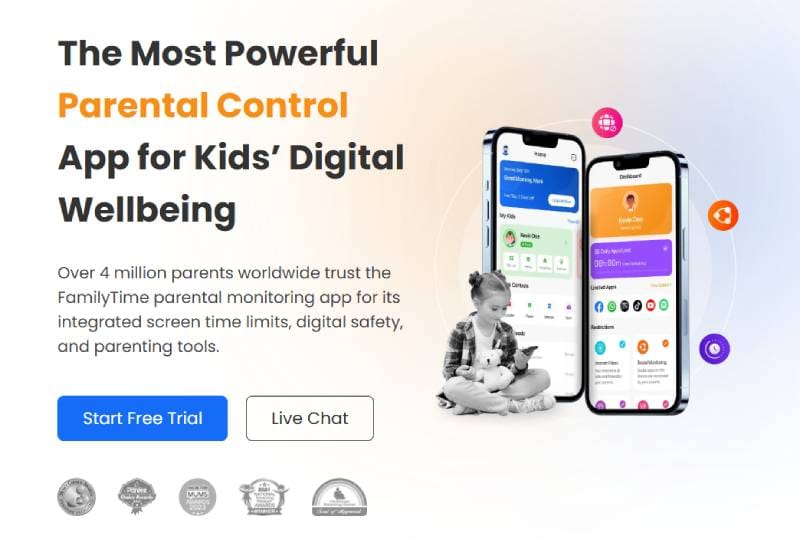
Overview: FamilyTime is a comprehensive parental control app (Android and iOS) that covers almost every feature a parent might want. It’s especially notable for including call and SMS monitoring (a rare feature) and for an extensive set of tools marketed for different age groups.
Key Features: FamilyTime offers screen time and app control much like the others: you can schedule device on/off times, set daily app limits, and completely block apps or games. It has web filtering and SafeSearch to block adult content.
FamilyTime’s standout claims are its social media and messaging tracking. It says it can monitor chats on WhatsApp, Instagram, TikTok, imo, Twitch, Signal, and more. In practice, FamilyTime requires you to install third-party plugins or profiles (especially on iPhone) to capture this data. It also logs SMS and phone calls – you can see who your child is texting or calling and for how long, which no other app on this list offers (except Bark Phone/Watch hardware).
The app includes an Advanced Location Tracker with live location, location history and geofences with alerts. It even has a “TeenSafe Drive” mode: set a speed limit and get alerts if your teen drives too fast. On the safety side, FamilyTime has SOS and “PickMeUp” alerts that kids can send if they’re in trouble.
Pros:
Extensive feature set: It covers almost everything: time limits, apps, web, location, plus the unique addition of calls/SMS and driving alerts.
Contacts monitoring: Parents can review and “watchlist” contacts (flag suspicious ones).
All device support: Works on iPhone, Android, plus there are apps on Windows, macOS.
Cons:
Complexity: With so many features, FamilyTime has a steeper learning curve. The setup involves multiple steps (installing child app, giving it device administrator rights, possibly installing VPN/profiles for iOS). Non-technical parents may find it overwhelming at first.
Data privacy concerns: The deep monitoring (calls, texts, chat apps) may feel very invasive. Families should consider their parenting style before enabling everything.
UI less polished: Some users say the interface is not as slick or intuitive as bigger brands.
Price: It’s also subscription-based, and full features (especially social monitoring) might require a higher-tier plan.
Difficulty of Setup: Hard. Due to its breadth, setting up FamilyTime can be tricky. Each device requires multiple permissions and potentially extra downloads (especially on iOS to capture social data). Expect to spend some time following their guides or contacting support.
Best for: Tech-savvy parents who want every possible tool. FamilyTime is best if you really need calls/SMS logs or detailed chat monitoring, and are willing to do a complex setup. It’s more than most families need, but for those who want exhaustive oversight, it delivers.
Which Parental Control App Is Easiest for Non-Technical Parents?
For many parents, simplicity is key. The easiest solutions are usually the built-in ones or those with very user-friendly apps:
- Apple Screen Time: If your family is all-Apple, this is by far the easiest. No downloads needed – just use the Settings app on your iPhone. Setup is guided, and controls are straightforward.
- Google Family Link: Similarly, if you’re in the Android/Google world, Family Link is simple and free. The interface is clean and links directly to your Google accounts.
- Norton Family: Among third-party apps, Norton scores high for ease-of-use. Reviewers note it’s “very easy to set up”. Its menus are not cluttered, and getting basic filters/schedules in place is simple.
- Qustodio: Also fairly easy. The TechRadar review says it’s “typically easy to get started”. Its wizards walk you through permissions, and the parent app has helpful tooltips.
- Bark: Medium difficulty. Android install is fine, but iPhone setup can be tricky, which some parents find daunting.
- Net Nanny: Moderate. The UI is not confusing, but installing on each device (granting many permissions) takes some work.
- FamilyTime: Hardest. It offers many advanced features at the cost of complexity, requiring extra steps and sometimes tech support.
In short, if you want “plug-and-play,” use Apple or Google’s defaults if possible. For a paid app, Norton or Qustodio tend to be easiest for non-techy parents. Always remember: the human factor matters most. No matter which tool you choose, the best approach is to set it up openly with your child, explain why it’s there, and review settings together. Secretly installing an app can backfire by destroying trust.
Common Mistakes Parents Make With These Apps
Even with the best app, mistakes can undermine your goals. Here are pitfalls to avoid:
- Installing in secret: Hiding these tools from kids is a big error. If they discover it (and they usually do), it can harm trust. Instead, introduce the app as a “guardrail” for safety, not a spy tool, and reassure them it’s not reading innocent chats (e.g. “I won’t read every text about your lunch”[18].
- Overblocking without context: Simply blocking all social media or websites can lead to frustration or kids finding workarounds. A better approach is to involve them in the rules: walk through the settings with them, decide together what categories to block, and explain why certain sites/apps are off-limits.
- Forgetting to update settings: As kids grow, their needs change. A rule you set years ago (e.g. “no games at all”) might be too strict now. Regularly review and adjust schedules or filters so they stay reasonable.
- Over-relying on the app: Technology is helpful, but it’s not a substitute for conversation. Apps should prompt discussions, not replace them. For example, if an alert flags a “spam” joke as bullying, use that as a moment to talk – don’t just scold your child.
- Ignoring device variety: Sometimes parents secure a smartphone but forget other devices. Remember: many rules only apply where the app is installed. Laptops, gaming consoles, or a friend’s phone might still be unsupervised. Consider whole-home tools or router-level controls if needed.
- Not using all features: Some parents set a single app limit and consider it done. But features like “always allowed apps,” or scheduling Internet pauses, can make life much smoother. Learn the little tools (like Qustodio’s “Always Allowed” apps, or Bark’s quick Pause) to avoid constant micromanaging.
Avoid these missteps by staying engaged. Apps are just one piece of the puzzle – the goal is to empower kids to make good choices, not just to lock everything down.
Privacy Concerns and Ethical Questions
Parental control apps raise important privacy and ethical issues. On one hand, parents understandably want to protect their children from online harms. On the other, extensive monitoring can infringe on a child’s privacy and sense of trust. Experts caution that these tools should be used transparently: children ought to know what is being monitored and why.
For example, location tracking is a common tool. Research suggests that constant GPS monitoring without consent can damage parent-teen relationships. It’s best to agree on its use: maybe enable location when a child goes out late, but not spy on them 24/7. In general, ethical use means balancing safety with respect. Involve your child in setting limits when appropriate – experts say letting kids review and agree to the rules builds mutual respect[19].
Data privacy is another issue. These apps inevitably collect personal data (locations, browsing history, messages). Choose reputable brands with strong privacy policies. Even so, be aware: no system is immune to breaches. (Researchers note parental apps can accumulate sensitive information – if that data leaked, it could be risky.) Always secure your accounts with strong passwords, and regularly check what data the app has.
Finally, ethical norms differ by age and culture. In many places, parents are legally allowed to install monitoring on a child’s device without consent (usually until about age 13–16), but the wisdom of doing so without a child’s knowledge is debated. The bottom line is: use these tools thoughtfully. The goal is to support your child’s healthy development, not to act like a jailer.
Do Parental Control Apps Actually Work?
Yes – to an extent. When properly used, they can enforce concrete limits and help catch problematic behavior. For example, the FOSI survey mentioned above found families using parental controls reported lower screen time. That’s real evidence these tools can reduce overuse. They’re especially good for hard rules like “no devices after 9PM” or “no violent games,” since the apps actually block usage at those times.
However, no app is a magic bullet. Tech-savvy kids often find workarounds. They might switch devices, change time zones on the phone, use a VPN or alternate browser, or simply turn off the phone. (In fact, you can find countless YouTube tutorials on “how to bypass Screen Time” and the like.) Moreover, apps generally don’t teach good habits on their own. Researchers note that while monitoring apps may curb unwanted activity, they do not improve parent-child communication or help teens develop self-regulation. In other words, the apps can “govern” the device like a speed limiter, but the child still needs learning and guidance from parents to develop healthy digital habits.
In short, think of these tools as a “secondary layer of defense”. They are great for enforcing bedtimes, curbing outright dangerous content, or getting alerts if something is wrong. But they are terrible at replacing a conversation or parenting itself. The real aim is to use apps to buy time and insights, while you do the hard work of talking with your child and teaching them to make safe choices on their own.
Final Thoughts
No single “best” app fits every family. The right choice depends on your child’s age, your comfort with technology, and what you most need to control. Here are some final tips:
Start simple. If you’re unsure, try the free built-in tools first: Screen Time on iOS or Google Family Link on Android. See if those cover your needs before jumping into paid apps.
Match features to needs. If content filtering is your priority, Qustodio or Net Nanny shine there. For social media chats, consider Bark or FamilyTime. For ease-of-use, look at Norton or the built-in solutions.
Test drive them. Many apps offer free trials or basic free tiers. Set up a short trial and play with the settings before committing.
Combine tools if needed. Some families use more than one solution. For example, you might rely on Screen Time on iPhones but use Bark on an Android tablet. Or pair a device-based app with router-level controls. Just ensure they don’t conflict.
Communicate with your kids. Explain why you chose the app, what it does, and that it’s for everyone’s safety. Show them the settings if appropriate. Emphasize trust and invite them to express concerns. Studies stress that involving children in these decisions leads to better outcomes.
Stay flexible. As your children grow, you should revisit and loosen or tighten settings. The goal is balanced independence, not permanent lockdown.
Above all, remember that technology is only one tool in parenting. Parental controls can help enforce rules and alert you to problems, but the best protection comes from open dialogue and a trusting relationship. Use these apps as helpful assistants – but keep doing the parenting yourself.